
Tutorial: Anytime TD Model Board
The Anytime TD board is the flagship board in TouchdownPredict: every player on the week's slate with an anytime touchdown read, graded and set beside the market. This walkthrough shows how to scope the week, what each column means, how the filters work, and what is inside the player modal, so the board reads like a story instead of a spreadsheet.
What's covered
What the Anytime TD board is
Getting there and choosing the week
Narrowing the slate with game chips
Reading a row: grade, probability and confidence
The market columns: consensus odds, EV and best book
Filters, tags and columns
Starring plays
The player modal, tab by tab
The other tabs on the page
What the Anytime TD board is
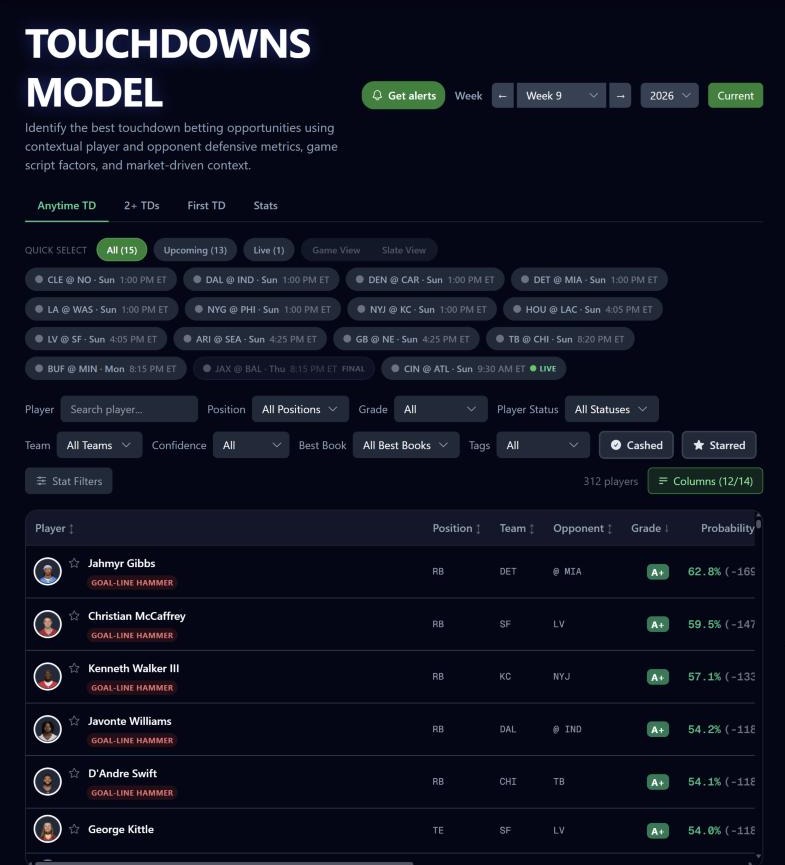
The board lives on the Touchdowns Model page, as its first tab. Each row is one player in one game this week, and the question it answers is simple: how likely is this player to score a touchdown? The page has four tabs: Anytime TD, 2+ TDs, First TD and Stats. This post covers Anytime TD, the tab that opens by default.
A row is graded and priced. The grade is a letter, with A+ at the top, and the board opens sorted by grade, best first, with the touchdown probability breaking ties inside a grade.
Getting there and choosing the week
Open the sidebar and choose Touchdowns Model under Player Tools. The page opens on the current week of the season. The football slate is a week, not a single day, so the control in the top right of the page is a week selector: step to an earlier or later week, or jump back to the current one. The selected week stays in place as you move between the tabs.
When a Get alerts button is shown beside the week selector, it turns on touchdown alerts for the plays you have starred.
Narrowing the slate with game chips
Above the table is a row of game chips, one per game of the week. Click a chip to show only that game; click several to compare games; click All to clear the selection. Once games are finished, they fold into a single Final chip so the games still to be played stay in front.
When you have selected games, a Game View and Slate View toggle lets you choose between a table split by game and one flat table ranked across the selected games.
Reading a row
The Player cell
The first column carries a headshot, a star, and the player's name. Click the name to open the player modal. Next to the name you may see small badges: a live touchdown pill while a game is in progress, a TD badge once the player has scored, and short situation chips (for example a player returning from missed games, a questionable tag, a new quarterback this week, or a top target out so volume shifts). Hover a chip for its explanation. Any of your custom tags that match the player sit on their own line beneath the name.
Position, Team and Opponent
Position, Team and Opponent give the context at a glance. An at sign before the opponent means the player's team is on the road.
Grade, Probability and Confidence
Grade is the board's letter for the play, from A+ down. Click the header to sort by it.
Probability is the chance the player scores a touchdown. It is tinted to match the grade, and the equivalent American price is shown alongside it.
Confidence reads High, Medium or Low for the row.
Game Status and Player Status
Game Status shows the kickoff and, once a game starts, where it stands. Player Status shows the injury report designation: Active, Questionable, Doubtful or Out. Games that are over are pinned to the bottom of the table and dimmed, so a finished game never leads the ranking.
The market columns
Consensus Odds is the market's consensus price for the player to score.
EV vs Consensus is expected value measured against that consensus price.
Best Book shows the best available price and the sportsbook offering it.
Any column header with sorting can be clicked to sort the board, and clicked again to reverse it. Rows with no value for a column always fall to the bottom.
Filters, tags and columns
The toolbar above the table narrows the board. On a phone these controls collapse behind a Filters button.
Player search finds a player by name.
Position narrows to QB, RB, WR or TE.
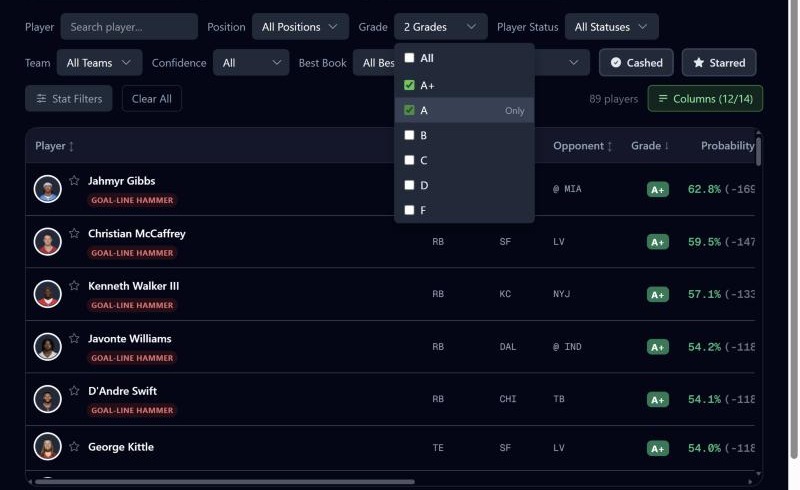
Grade lets you pick one or several letters.
Player Status narrows by injury designation.
Team narrows to one or more teams.
Confidence narrows to High, Medium or Low.
Best Book narrows to rows where a chosen sportsbook has the best price.
Tags filters to players who match your custom tags, matching any or all of the tags you pick.
Cashed shows only players who have already scored.
Starred shows only the plays you have starred this week.
A stat filter builder lets you add your own conditions on the underlying player stats.
Your filter and column choices are remembered on your next visit. The player search and the game chips are not, because they describe one week. A Clear control resets the filters in one click, and a count beside the toolbar shows how many players are on screen.
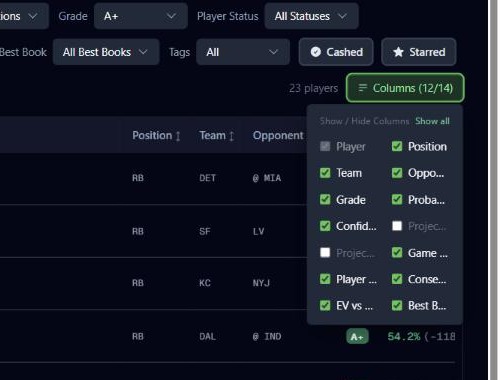
The Columns menu shows and hides columns. Two are hidden until you turn them on: Projected Rushing TDs and Projected Receiving TDs, which split a player's touchdown outlook between running and catching.
Starring plays
Click the star beside a player to save the play. Stars feed the Starred filter, the touchdown alerts, and the Starred Plays tray at the bottom of the screen. The tray has two tabs: My Stars, which holds your own list, and Most Starred, which shows the plays the most subscribers starred this week.
The player modal
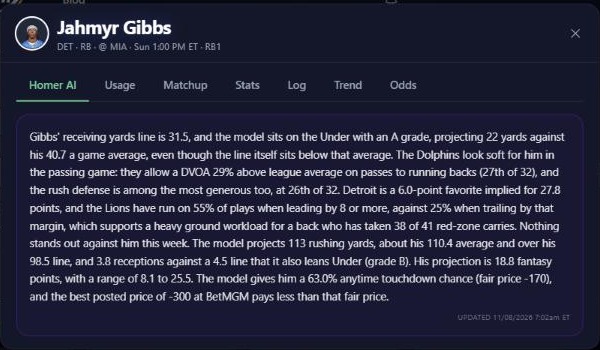
Click a player's name to open the modal. It stays on the board's week and has these tabs:
Homer AI: the written read for the player's game, when one is available.
Usage: how the player's workload is shared on his team, shown for the season and the last four games.
Matchup: how the opposing defense lines up against the player's role.
Stats: the stat lines behind the read.
Log: the player's season, game by game.
Trend: how the player has done against the line over recent games.
Odds: every sportsbook's price side by side.
The other tabs on the page
2+ TDs and First TD are separate bets with their own boards, built the same way. The Stats tab lists the numbers behind the board's players, with a position filter, so you can sort the slate by a stat you care about. The stat filters you build there also narrow the three betting tabs.
Open the feature: Touchdowns Model
Must be 21 or older. Please play responsibly.